Creating an account
Every new account has a 90-day trial that can hold one plugin.
- Choose Sign up in the menu. Enter your email address and set a password.
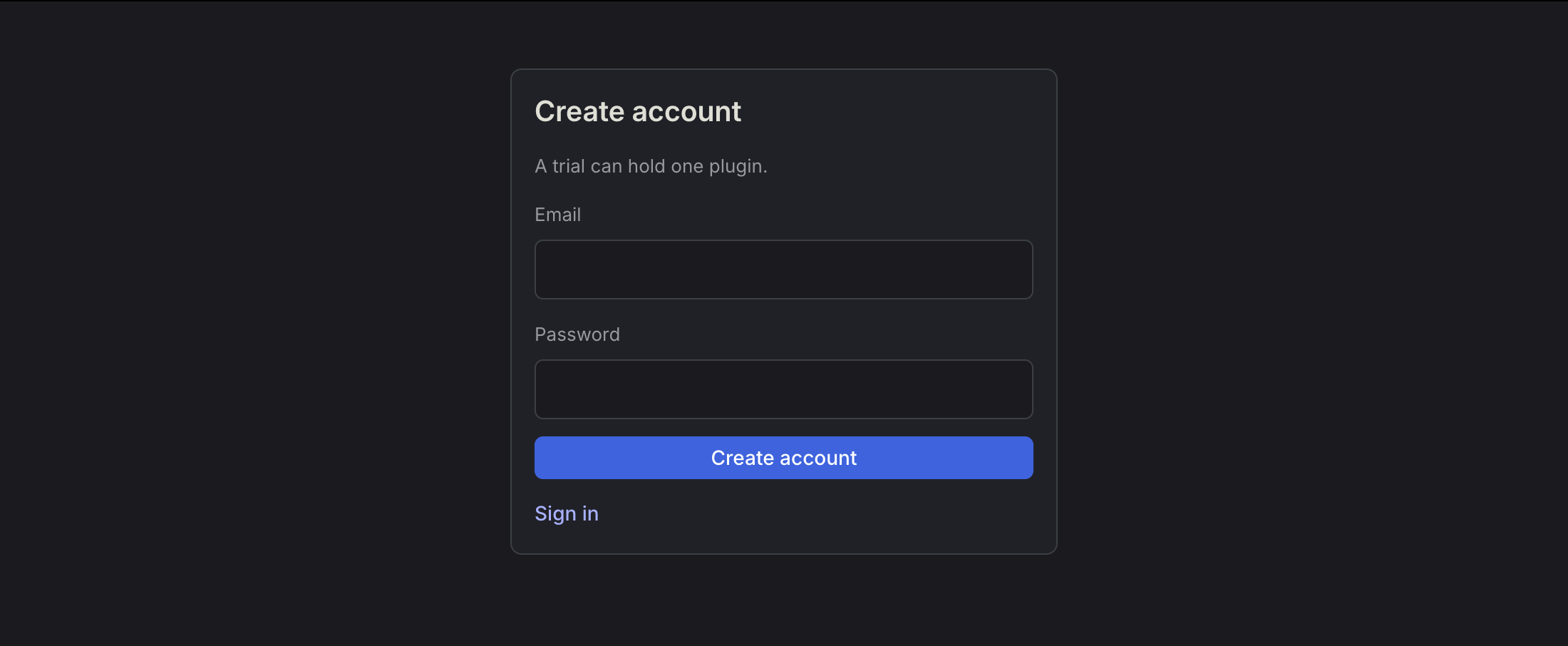
- Open the verification link in the email you receive.
- You land on your account page, and the trial has started.
When the trial ends, or when you need more than one plugin, upgrade from the plan buttons on the account page. You need to be signed in. There is no separate checkout link to follow first.
Adding a plugin
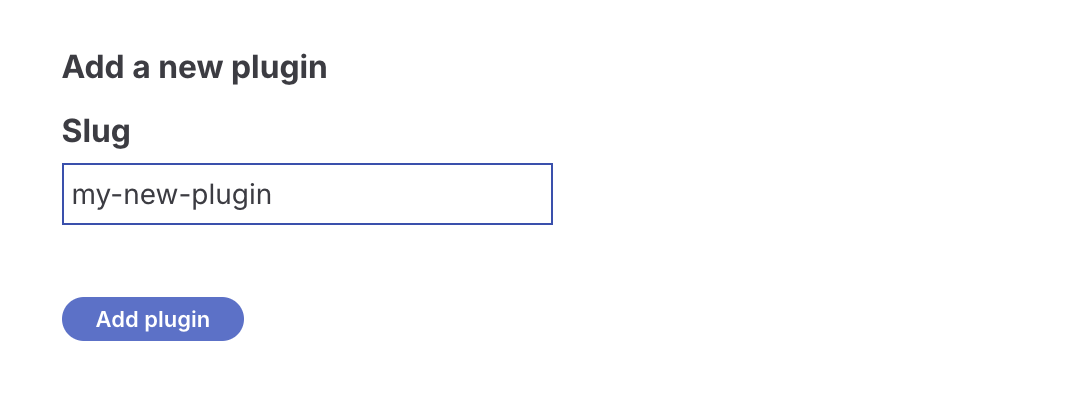
On the account page, while you have no plugins yet, choose Add plugin. You can also open the Plugins page and add one there.
You only enter a slug. The plugin name, version, and author are read later from the zip you upload.
The slug may contain only lowercase letters, digits, and dashes. It must be unique on your account. The folder inside the zip must use this same slug.
Leave the license set to No license until you sell the plugin. Sites can download it without a license key. You can switch to static keys or Lemon Squeezy later, on the plugin page.
Uploading the first zip
The plugin is not really published until the first zip is uploaded. That zip is what a WordPress site downloads.
On the plugin page, choose Add version and pick the zip.
The zip must follow three rules:
- It contains exactly one root folder, and that folder is the slug. A
__MACOSXfolder next to it counts as a second folder, and the upload will fail. - The main plugin file has a
Versionline in its header. WunderUpdates reads the version from that line. - The file is 50 MB or smaller.
Uploading the same version again replaces that zip. You will be asked to confirm before the replacement happens.
When the version appears in the list, the next step is to add the plugin class to your plugin. That is covered in Integration with WordPress.
Seeing the update on a site
Install the plugin on a WordPress site that already has an older copy. WordPress checks for updates on its own, about twice a day, and will offer the version you uploaded.
You do not run that check from the WunderUpdates dashboard. The check is the WordPress site asking WunderUpdates whether a newer version exists.